


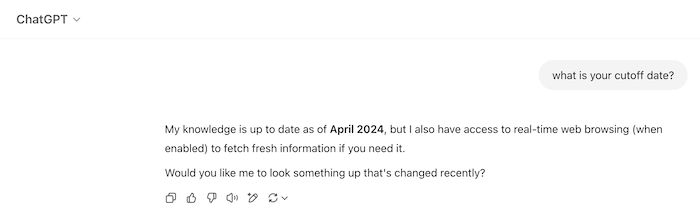
Large Language Models (LLMs) or AI models like ChatGPT, Gemini, etc., are only trained on data up to a certain point in time, known as the cutoff point. For example, for ChatGPT at the time of writing this tutorial, its knowledge only extends to April 2024:
Even Gemini only lasts until June 2024:

This means that ChatGPT and Gemini don’t have the information to respond to us after the cutoff point.
Another problem is that LLMs can’t respond to information related to our personal data, data on our machines, or other private content.
For LLMs to access private information or information after the cutoff point, the only way is for us to provide it.
We can provide information to LLMs, but the problem is that each LLM will have a different way of reading that information. How do we standardize them? That’s why the Model Context Protocol (MCP) concept was born! MCP was introduced by Anthropic, the father of AI models, Claude, defining a standard for AI models to access different data sources, thereby enabling them to respond to the information we want.
MCP General Architecture
To understand MCP, you need to grasp the following concepts:
- MCP Hosts: These are client programs of AI models, used to access personal data or data after the cutoff point.
- MCP Clients: Within the MCP Host, they connect to the MCP Server to retrieve information.
- MCP Servers: These are applications that expose data from data sources to AI models using the Model Context Protocol.
The General Architecture of MCP can be redrawn as follows:
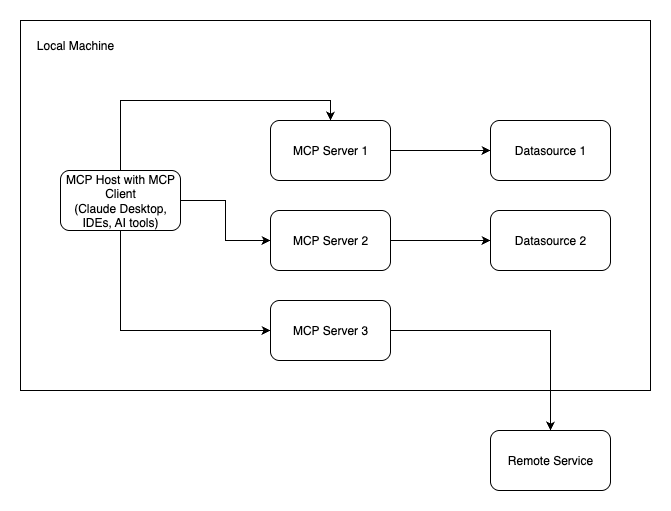
As you can see, for each data source, we have a corresponding MCP Server. MCP Server 1 and 2 expose data to the data sources on the local machine, while MCP Server 3 connects to a Remote Service to retrieve information and expose data to AI models according to the MCP standard.
Many ready-made MCP Servers are available here: https://github.com/modelcontextprotocol/servers?tab=readme-ov-file#-reference-servers.
Now, I will guide you on how to use a simple MCP server to understand how MCP servers work!
Configure the MCP Server with the MCP Host
The MCP Server I’ll be using for this example is the Filesystem at https://github.com/modelcontextprotocol/servers/tree/main/src/filesystem. This MCP Server is written in Node.js!
The Filesystem MCP Server allows you to perform various tasks using the tools listed at https://github.com/modelcontextprotocol/servers/tree/main/src/filesystem#tools. You can think of tools as features that we can use with the MCP Server.
The MCP Host I’ll be using is the Claude AI Desktop application.
To configure the MCP Server Filesystem with the Claude Desktop application as the MCP Host, open the Claude Desktop application, then go to the Settings menu. In the Settings window, select the Developer tab.
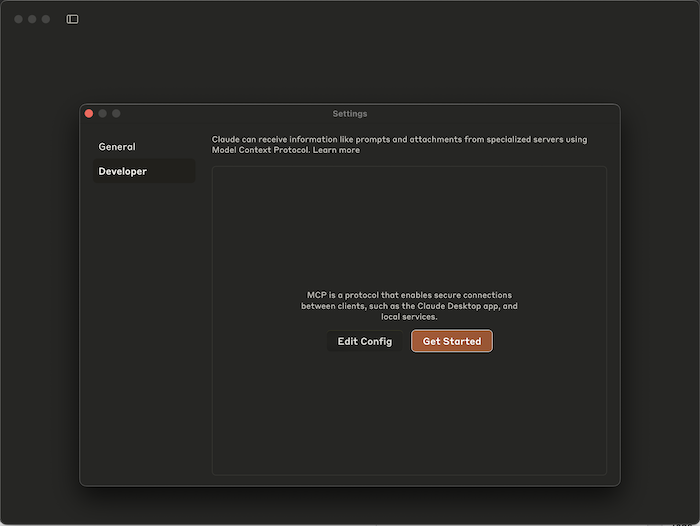
then click the Edit Config button. A claude_desktop_config.json file will open.
This claude_desktop_config.json file contains the definitions of all the MCP Servers for Claude Desktop! These MCP Servers will run every time we run Claude Desktop.
You can configure the Filesystem MCP Server in the claude_desktop_config.json file with the following content:
|
1 2 3 4 5 6 7 8 9 10 11 12 |
{ "mcpServers": { "filesystem": { "command": "npx", "args": [ "-y", "@modelcontextprotocol/server-filesystem", "/Users/khanhnguyenj/Documents/code/huongdanjava.com" ] } } } |
With this configuration, Claude Desktop will install the Filesystem MCP Server by running the Node.js eXecute (NPX) command to download the @modelcontextprotocol/server-filesystem package from https://www.npmjs.com/package/@modelcontextprotocol/server-filesystem. The directory “/Users/khanhnguyenj/Documents/code/huongdanjava.com” is the directory on your machine that will be used by the Filesystem MCP server to query information. You can add more directories if you wish.
After configuring the Filesystem MCP Server, restart Claude Desktop.
After restarting, you will see the Filesystem MCP Server included in Claude Desktop as follows:
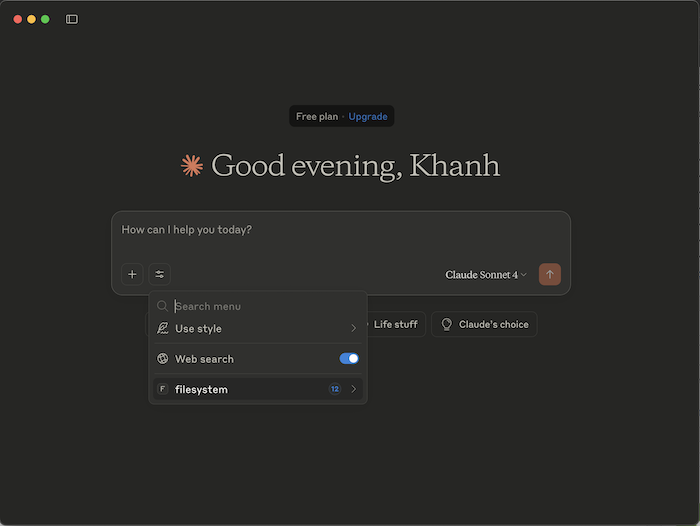
Now, I just need to type the command “List out all folders” into the prompt. For example, Claude Desktop displays the following result:
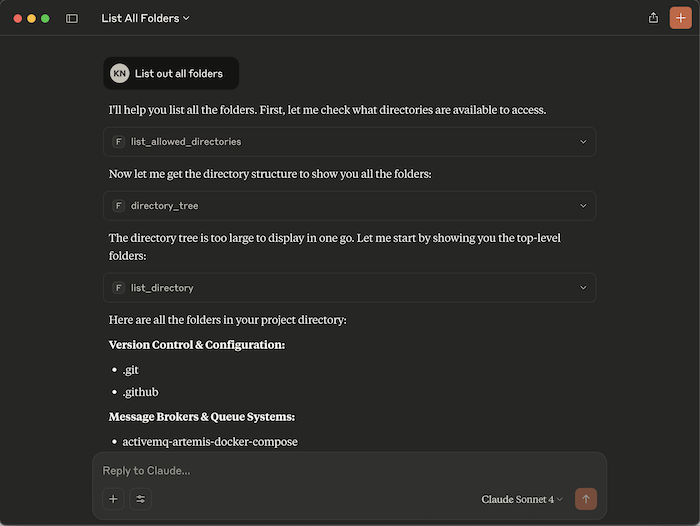
As you can see, Claude Desktop uses the list_allowed_directories, directory_tree, and list_directory tools to list all the directories within the configured directory. A great feature is that it can categorize the directories based on the information they contain and provide a general overview of each directory.
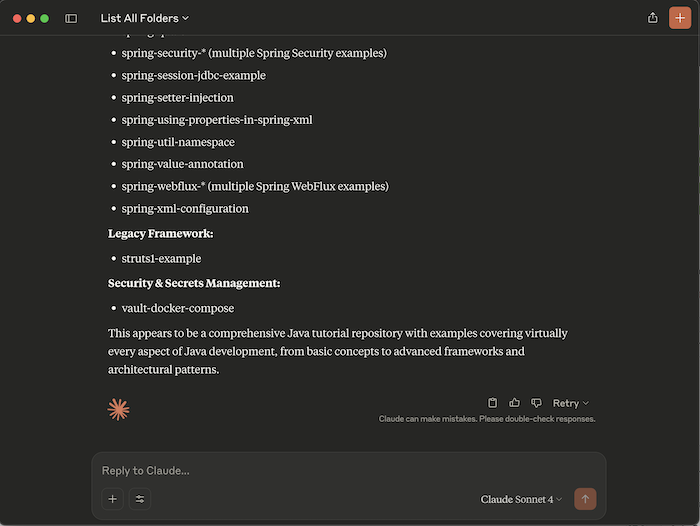
Thus, the Filesystem MCP Server has enabled us to access information on our computer, something that Claude Desktop cannot do by default.