


In the previous tutorial, I introduced you to Quarkus, a Supersonic Subatomic Java framework that allows us to build cloud-native Java applications. I showed you how to create a new Quarkus project using the website https://code.quarkus.io/. Besides using this site, we can also create a Quarkus project in three other ways:
- Quarkus Maven plugin
- Quarkus CLI
- and Quarkus RESTful APIs
How exactly? Let’s find out in this tutorial!
Quarkus Maven plugin
The Quarkus Maven Plugin defines a goal called create, allowing us to generate a Quarkus project! You can use the Maven command as follows:
|
1 2 3 4 |
mvn io.quarkus.platform:quarkus-maven-plugin:3.38.1:create \ -DprojectGroupId=<group_id> \ -DprojectArtifactId=<artifact_id> \ -Dextensions="<list_extensions>" |
- <group_id> and <artifact_id> are the Group ID and Artifact ID of the project you want to create.
- <list_extensions> is a list of extensions you want to use. You can find a complete list of Quarkus extensions here: https://quarkus.io/extensions/.
For example, if I want to generate a Quarkus project with the RESTEasy Classic extension at https://quarkus.io/extensions/io.quarkus/quarkus-resteasy/, I can run the following command:
|
1 2 3 4 |
mvn io.quarkus.platform:quarkus-maven-plugin:3.38.1:create \ -DprojectGroupId=com.huongdanjava.quarkus \ -DprojectArtifactId=quarkus-example \ -Dextensions="io.quarkus:quarkus-resteasy" |
Result:
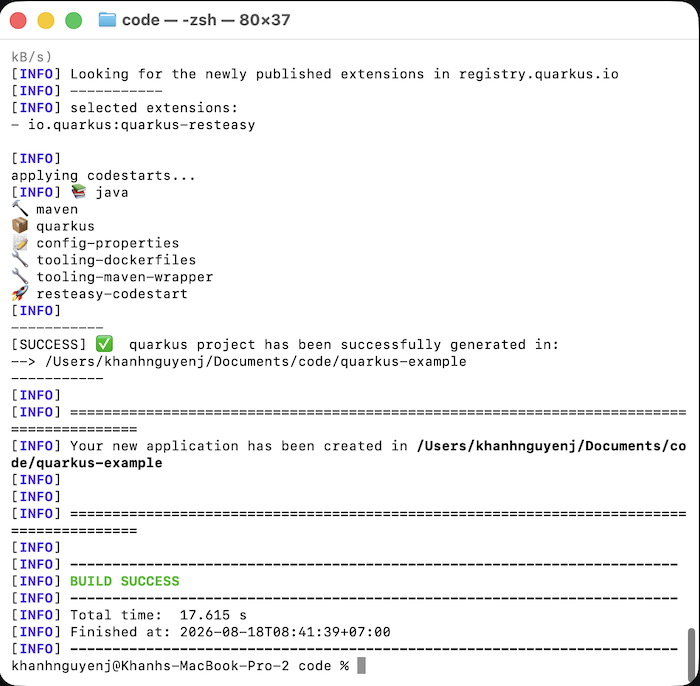
Open the generated project, and you’ll see the same result as the project I created in the previous tutorial!
Quarkus CLI
Quarkus provides a CLI tool at https://quarkus.io/guides/cli-tooling. This tool allows you to create new Quarkus projects; add, delete, view the list of extensions; build a Quarkus project, etc.
You need to install this tool first, for example, using SDKMAN as follows:
|
1 |
sdk install quarkus |
Result:
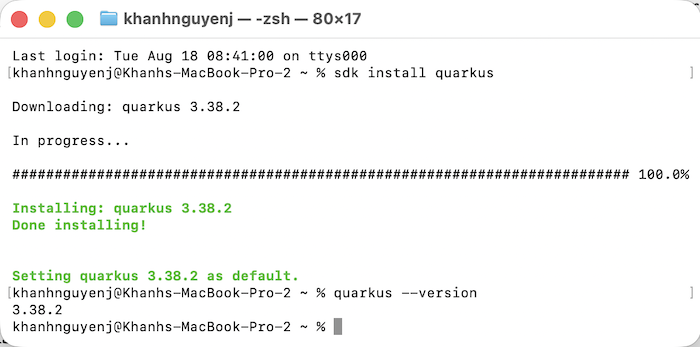
Now you can use the following Quarkus CLI command to create a new Quarkus project:
|
1 |
quarkus create app <group_id>:<artifact_id> --extension <list_extensions> |
For example:
|
1 |
quarkus create app com.huongdanjava.quarkus:quarkus-example --extension io.quarkus:quarkus-resteasy |
Result:
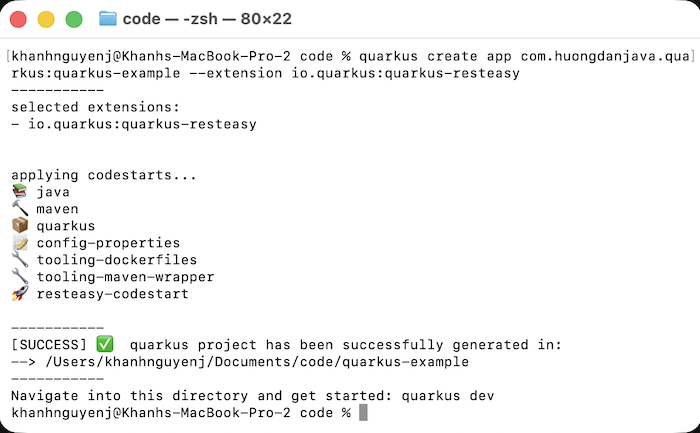
Open the generated project, and you will see the same result.
Quarkus RESTful APIs
Quarkus also provides the Swagger UI at https://code.quarkus.io/q/swagger-ui/ with the base URL being https://code.quarkus.io/api. You can use the /api/download API to generate a Quarkus project. For example:
|
1 |
curl "https://code.quarkus.io/api/download?g=com.huongdanjava.quarkus&a=quarkus-example&e=io.quarkus:quarkus-resteasy" --output quarkus-example.zip |
Result:
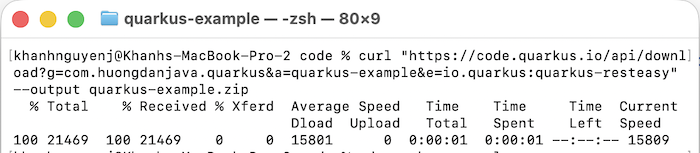
Unzip the generated file and open the project; you will see the same results as when using other project creation methods.